
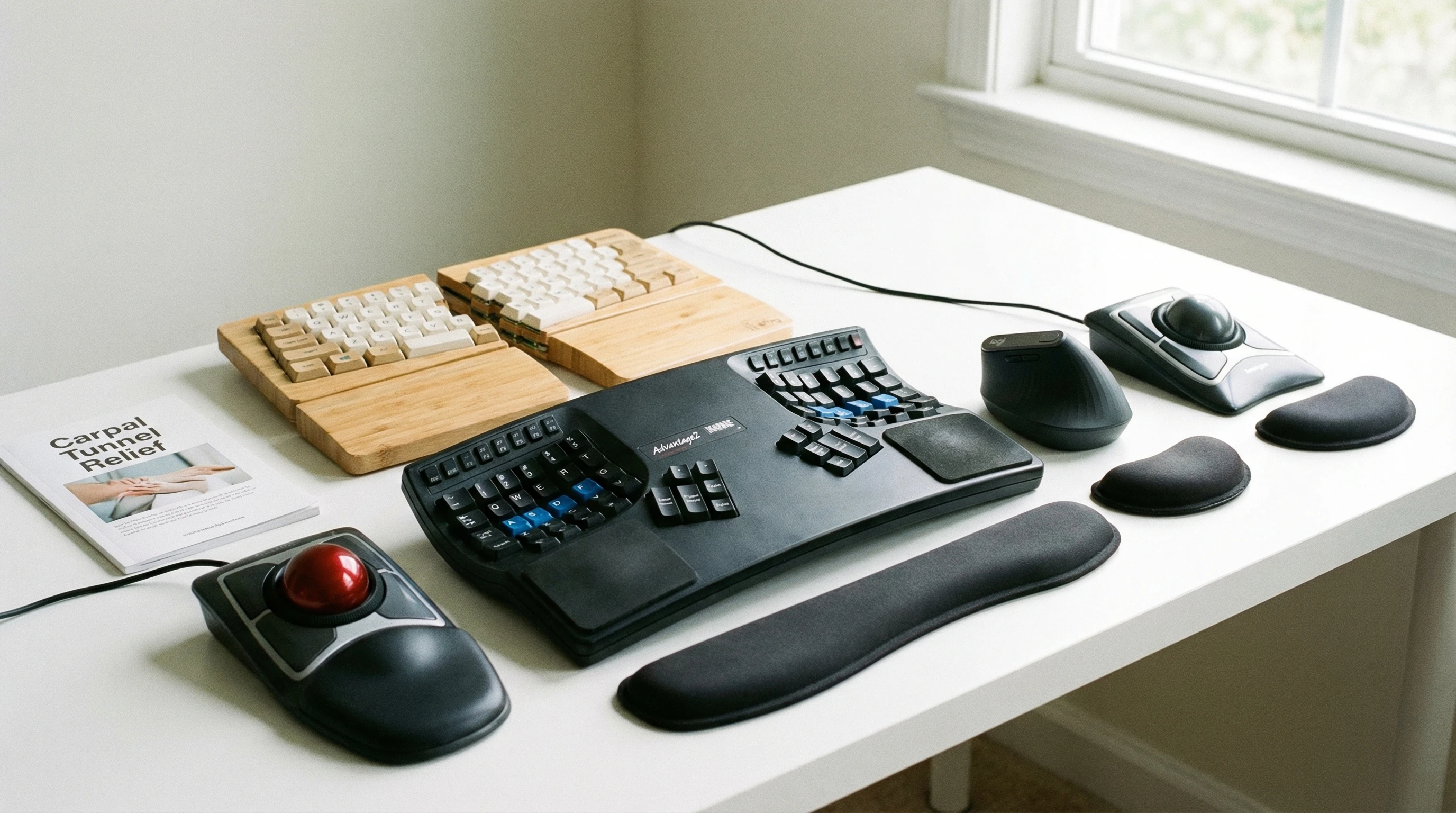
Hand pain or tingling from carpal tunnel syndrome hits when you least expect it. I know it can mess with everything—work, gaming, or even just casual web browsing. After those nagging wrist aches started making even simple typing a challenge, time for a change is a must.
If you want to avoid carpal tunnel syndrome or simply want a more comfortable day at your desk, the proper keyboard and mouse configuration can make a big difference.
This guide will walk you through the essentials: what carpal tunnel syndrome is, how smarter choices can help, which features make a difference, and my picks for standout ergonomic keyboards and mice you can get right now.
Whether you’re already dealing with wrist pain or simply aiming to avoid it, a few tweaks can completely change your desk life.
Disclosure: This post may contain affiliate links which means that I may earn commission if click and make a purchase but no additional cost to you.
What is Carpal Tunnel Syndrome?
Carpal tunnel syndrome (often called CTS) happens when the median nerve gets squeezed as it travels through the wrist. That median nerve is a big player—it controls movement and feeling in certain parts of your hand.
You may experience tingling, numbness, pain, or even weakness when it is under pressure, particularly in your thumb, index, and middle fingers. Grip strength can occasionally decline, or you may find that typing on a regular basis becomes more difficult.
Common Symptoms and Risk Factors
- Tingling or numbness, especially overnight or after repeating work
- Weaker grip strength
- Pain that sometimes travels up the arm
- Burning or aching in the wrist and palm
People most at risk include those with repetitive hands-on jobs (typing all day, frequent mouse use) and folks using tools that vibrate a lot. Conditions like diabetes or arthritis, or having smaller wrists, also up your odds.
The Role of Ergonomics in Preventing CTS
Workstation ergonomics isn’t only about fancy gadgets. It’s really about keeping your hands and wrists in more natural, relaxed positions. A thoughtfully designed mouse and keyboard can help you avoid awkward angles and repetitive stress.
The goal is to keep your wrists neutral, which tones down the pressure on that median nerve and keeps symptoms away.
Making even small adjustments to how your hands move throughout the day can help prevent wrist pain or keep it from getting worse.
Using a Mouse and Keyboard With Carpal Tunnel
Can You Use a Mouse With Carpal Tunnel?
You absolutely can use a mouse, but regular designs often make symptoms worse. A traditional mouse can push your wrist into uncomfortable angles and strain it. Switching to an ergonomic model can help.
Many people like vertical mice, trackballs, or penstyle ones since they ease up on the pressure and help your wrist relax.
Can You Use a Keyboard With Carpal Tunnel?
Keyboards are much the same, they require ergonomic adjustments too. They help keep your wrist in a neutral position which reduces extra strain. Ergonomic keyboards—with curved, split, or tented designs—allow wrists to rest in a more natural pose.
Features such as split layouts, low profile keys, and wrist rests can give a major comfort boost. They’re especially helpful if you spend a lot of hours typing each day.
Time to take a closer look at the features you’ll want to check out when choosing ergonomic gear.
What to Look For in an Ergonomic Keyboard or Mouse for Carpal Tunnel
- Shape: Split, curved, or tented designs help keep wrists straight and relaxed.
- Key Switches: Softer keys take the strain off sore hands when typing.
- Low Profile: Slimmer keyboards and mice help keep hands at a neutral level, making it easier on your wrists.
- Palm or Wrist Support: Cushioned rests prevent awkward bending.
- Adjustability: Options to change angles or height so you can match your unique needs.
Is a Lighter Mouse Better for Carpal Tunnel?
Usually, yes—a lighter mouse needs less force to move, which means happier wrists and less tension. Some ergonomic designs make weight the priority, while others pin their bets on offering a supportive shape. Try a few to see what’s best for your own comfort and hand size.
Types of Ergonomic Mice
There are a few basic categories of ergonomic mice, with each aiming to minimize different stresses on your wrist and hand:
- Trackball Mice: The mouse itself is stationary, while you move a ball with your fingers or thumb. This design reduces arm and wrist movement.
- Vertical Mice: These keep your hand in a handshake position, which leads to a straight and relaxed wrist.
- Penstyle Mice: With a shape similar to a writing pen, these feel familiar and allow for light, low-tension movement. Great for people who do detailed work or already prefer using a stylus.
Best Ergonomic Keyboard And Mouse For Carpal Tunnel Syndrome: My Picks
Trackball Mice
- Logitech M570: A wireless trackball that fits right in your palm and lets you roll the ball with your thumb. Great for small desks and reducing forearm movement, plus customizable buttons make work smoother.
- Kensington Expert Mouse: Perfect for both beginners and long-time users, with a big central ball that’s easy to roll and a super comfy wrist rest.
- Elecom Trackball Mouse: Compact with lots of programmable buttons, and you can pick right or lefthanded options for a personalized fit.
You can check out more awesome ergonomic mouses here!
Vertical Ergonomic Mice
- Logitech MX Vertical: My favorite for long, busy days; the handshake angle stops wrist aches. Wireless and USB-C rechargeable, it even lets you customize pointer speed.
- Anker Vertical Ergonomic Mouse: A budget-friendly pick with a comfy grip and responsive clicks—less expensive but reliable.
- Evoluent VerticalMouse: A longtime standout in the ergonomic community, offering a sturdy thumb rest and strong wrist support.
Penstyle Mice
- Penclic Mouse: Feels just like holding a pen, so it’s easy on the fingers and wrist. Super nice for precision tasks and quick to adjust to.
- Lychee Pen Mouse: A simple and affordable option for people curious about the penstyle feel. Minimal hand cramps after long use, especially once you get used to it.
Best Ergonomic Keyboards
- Logitech Ergo K860: Split, curved, and thoughtfully designed. The wrist pad makes typing comfy for hours, and key action is smooth yet firm.
- Kinesis Freestyle 2: Highly adjustable, since it splits in two and offers tenting. It’s a wrist-saver during busy days.
- Kinesis Advantage 2: Known for scooped key wells and tactile keys, which minimize finger movement and give lasting comfort.
- Microsoft Sculpt Ergonomic: A classic in the ergonomic world, with padded support and an easy-touse layout. This is a great pick for first-time users.
Lifestyle Considerations, Exercises, and Preventative Measures
Picking the right keyboard and mouse is only part of the puzzle. It’s just as important to take regular breaks and stretch. Try shaking out your hands every half hour, doing gentle wrist and finger stretches, or squishing a soft stress ball.
It really helps keep your hands feeling fresh.
Good posture is another game changer. Keep your shoulders relaxed, elbows next to your body, and wrists hovering lightly above the keys (instead of resting your wrists hard on the surface).
If you can, adjust your monitor so it matches your eye level, and use a chair that supports your back.
Some find relief by applying warm compresses or wearing a wrist splint at night. If symptoms keep returning, be sure to check in with your doctor or a physical therapist—they can suggest tailored stretches or treatment to help you get back on track.
Wrapping Up
Making even small changes—like opting for a split keyboard, vertical mouse, or improved desk posture—can make a big difference over time. Ergonomic tools are absolutely worth the investment: you’ll be able to use your computer longer, with less discomfort, and enjoy more productivity.
Don’t forget to take breaks, stretch often, and listen to your body. When comfort becomes your top priority, your hands and wrists will be grateful for years to come.
Thanks for stopping by and have a great day!