
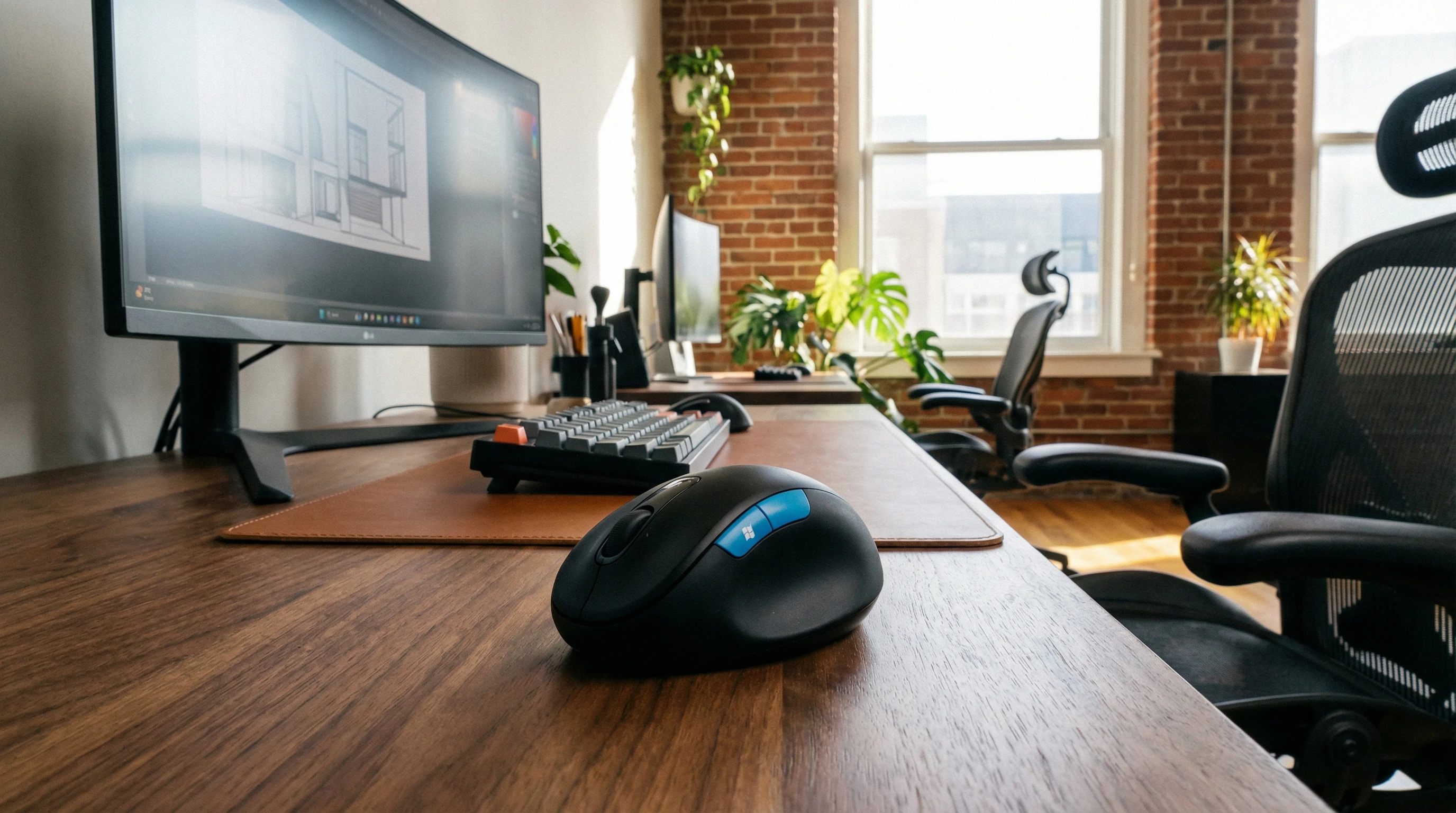
 If you’ve ever experienced wrist pain or finger cramps from long hours at your computer, you’re not alone. I used to think all mice were pretty much the same, but after swapping to the Microsoft Sculpt Ergonomic Mouse, my entire approach to desk comfort changed. This mouse promises to give a boost to your daily comfort, reduce strain, and help you get through spreadsheets and browsing with much less hassle.
I’ve used the Sculpt Ergonomic Mouse quite often for everything from graphic design to heavy email days. There’s plenty to like, though a few quirks are worth knowing about before buying. I’ll cover everything I’ve learned: its features, setup, health perks, what shines (and what doesn’t), and extra tips for making the most of it.
Microsoft Sculpt Ergonomic Mouse at a Glance
My Rating: ★★★★☆ (4/5 stars)
- Ergonomics: 5/5
- Ease of Use: 4/5
- Build Quality: 4/5
- Features: 3.5/5
- Price Value: 4/5
Microsoft designed this mouse for committed desk dwellers, meaning people who sit at the computer for hours on end. It won’t win style contests, but the comfort and subtle features really add up once you use it daily.
Best Features of the Microsoft Sculpt Ergonomic Mouse
- Natural Hand Position: The rounded, elevated shape lets your hand rest at a relaxed angle, taking pressure off your wrist. The thumb scoop keeps your grip loose, which my joints really appreciate.
- Dedicated Windows Button: One-click access to the Start Menu is genuinely convenient when multitasking, so there’s no more stretching for the keyboard every time.
- Wireless Setup: No cable clutter here; the included USB dongle plugs in within seconds. I never noticed lag or dropouts during daily use.
- Back Button: The side button for “back” browsing is handy, letting me zip through emails and web pages without moving my hand much.
- Responsive Scrolling: The scroll wheel feels smooth, making it easy to get through long pages or spreadsheets quickly.
What’s in the Box, and How to Set It Up
Starting out with the Sculpt Ergonomic Mouse takes just a few minutes, even if tech setup isn’t your thing.
- Open the box and inside you’ll find the mouse, a pair of AA batteries, and a small USB receiver.
- Slide the batteries into the slot underneath the mouse.
- Plug the USB dongle into your computer. No software needed; Windows or macOS should spot the mouse instantly.
- The mouse is ready to roll. No confusing manuals, and the process took me less than two minutes.
If you’d like to fine-tune settings (like button functions), Microsoft’s Mouse and Keyboard Center app is worth checking out. It’s free and unlocks extra productivity tweaks if you want them.
Everyday Experience: Why Ergonomics Matter
The big reason I grabbed the Microsoft Sculpt Mouse was wrist pain from those skinny flat mice bundled with most computers.
This mouse is quite tall and chunky. At first, the look is a bit odd, but as soon as your hand rests on it, it just feels right. My wrist and fingers are supported rather than squished or bent like they are on flatter, traditional mice.
The thumb scoop is a highlight. Rather than having your thumb pressed or crammed, it rests comfortably in the groove, which helps your whole hand stay relaxed.
Its size is best for medium or large hands, though those with very small hands might find it a bit oversized.
The Health Benefits of Using an Ergonomic Mouse
After changing to this mouse, I noticed a lot less hand and wrist tension. Here’s why the ergonomic design really makes a difference:
Promotes Neutral Wrist Angle: The angled design supports a handshake position, which experts say helps prevent carpal tunnel and repetitive strain injuries (RSI).
Reduces Finger Strain: Big chunky buttons mean you’re not overworking your fingers—ideal for people who click a lot.
Encourages Better Posture: I found myself naturally letting my arm and shoulder relax, which helped lessen nagging shoulder pain after a full workday.
Lower Fatigue: Over time, you’ll see your hands don’t get as tired from lots of clicking and moving, thanks to the gentle button pressure and roomy mouse shape.
It’s not a miracle fix for every work injury, but switching to an ergonomic mouse like this one definitely goes a long way toward keeping hands happy and comfortable.
Pros and Cons: My Honest Take
Pros
- Super comfortable for all-day use
- Natural hand and wrist angle cuts down on pain
- Easy, reliable wireless setup
- Extra features (Windows button, side back button) add daily convenience
- Battery life is impressive; mine easily lasts over six months
Cons
- Design is bulkier than most traditional mice
- Not ideal for very small hands (may feel oversized)
- Back button can be awkward to reach if you have shorter thumbs
- Only right-handed version is sold—no lefty edition
- Scroll wheel isn’t silent; you’ll hear some light clicks
Troubleshooting and Tips for Best Performance
If you ever spot lag or dropouts, check the battery first. Swapping in a fresh pair almost always clears up issues. The mouse will go to sleep if unused for a while; a quick click brings it back. For the strongest connection, put the USB dongle right into your computer instead of a USB hub.
Is the Microsoft Sculpt Mouse Worth It?
I made the switch for comfort, and I’ve stayed for pain-free workdays. For office workers, students, home desk warriors, and anyone who spends hours at a screen, the Microsoft Sculpt Ergonomic Mouse is a reliable choice.
It’s not perfect—especially if you need something ultracompact or left-handed—but if daily comfort and less strain matter to you, I’m happy to stand behind it.
If you’re already feeling wrist strain from a basic mouse, or just want a smoother workday, this one’s worth checking out. Small changes can have big benefits when it comes to long-term comfort at your desk.
What mouse do you currently use and what’s best about it? Let me know in the comment section below!
Thanks for stopping by and have a great day!