
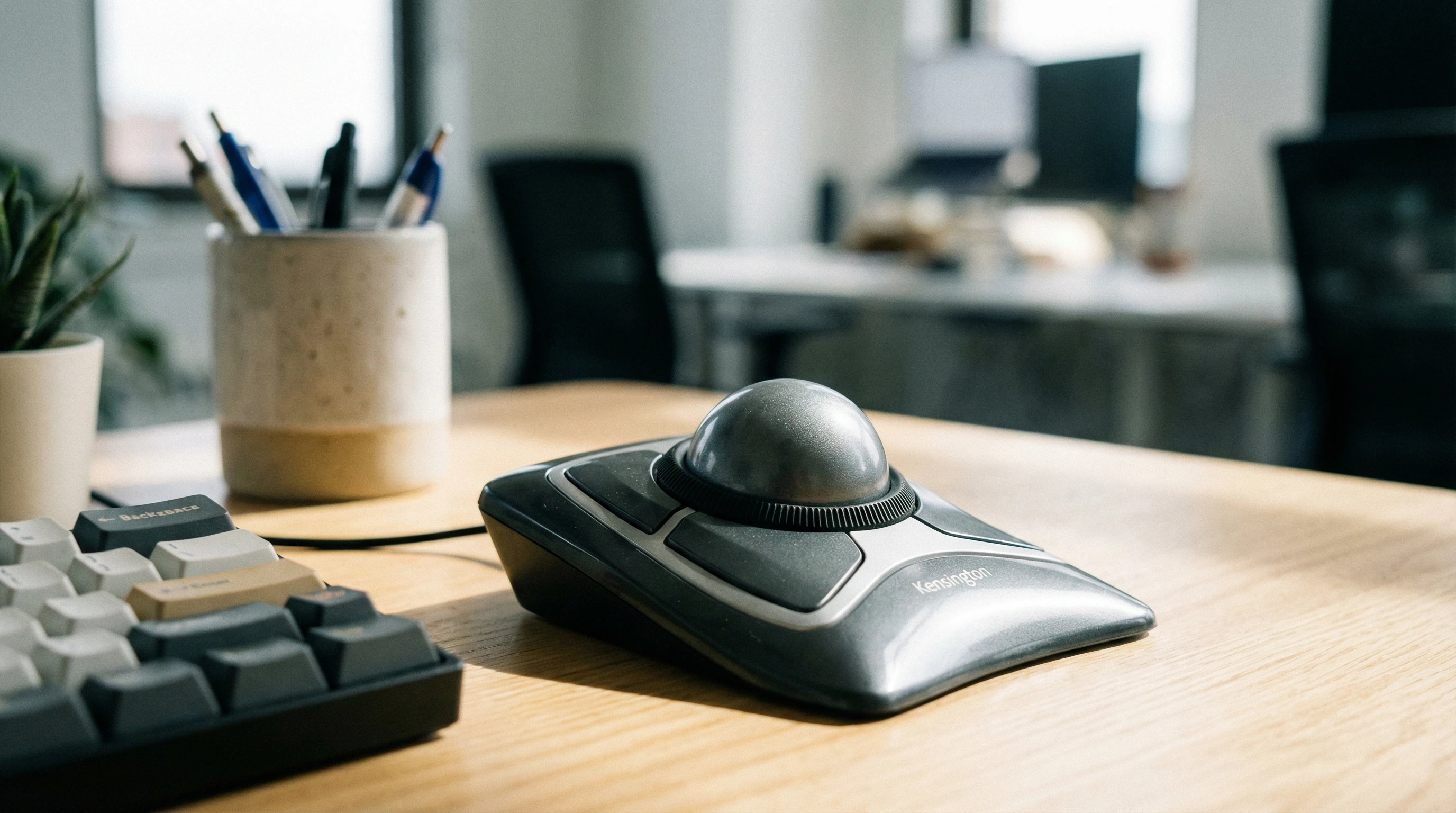
If you spend a lot of time on the computer, whether you’re editing photos, working on spreadsheets, or just browsing the web, good input devices make a big difference. I’m always on the lookout for gear that helps take pressure off my wrist, and the Kensington Expert Mouse has been on my radar for ages. So that is where the Kensington expert mouse review came in to creation.
Even though it’s called a “mouse,” the Expert Mouse is actually a big, comfy trackball. Here’s what I found after using it every day for a month.
What is the Kensington Expert Mouse?
The Kensington Expert Mouse is a wired or wireless trackball, meaning, instead of sliding the whole mouse around your desk, you rest your palm on the device and roll a big smooth ball with your fingers.
The design cuts down on wrist movement, and many people (including me) find it super comfortable once you get used to it. It’s been around in one form or another for years, and is a favorite among office workers, design pros, and anyone looking to cut down on hand fatigue.
- Compatible with Windows and Mac: Just plug it in or connect via Bluetooth or USB receiver.
- Large 55mm ball: Lets you zip across your screen with a flick of a finger.
- Four programmable buttons: Customize with different functions, shortcuts, or even copy/paste.
- Scroll ring: Surrounds the ball for easy, quick web browsing or document navigation.
- Detachable wrist rest: Adds a bit of support for longer work sessions.
You can find both wired and wireless versions. The wireless version runs on AA batteries and can connect over Bluetooth or the included USB dongle. The wired model uses a simple USB plug.
My Experience with the Expert Mouse
When I first set it up, I needed about two days to get comfortable swapping from a traditional mouse. There’s a slight learning curve; at first, my fingers would try to move the ball and scroll ring at the same time.
But after a week, I started to appreciate how little my wrist was moving compared to a standard mouse.
I use Adobe Photoshop and Excel almost daily, and being able to program the buttons for functions I use all the time (like undo, redo, or zoom) is pretty handy. The scroll ring makes long documents and websites a breeze to get through. I noticed less wrist soreness by the end of the day, and I liked how little desk space it took up.
Comfort for Long Hours
One of the reasons I stick with the Expert Mouse is how relaxed my arm and hand feel after long sessions. My hand rests naturally, and I don’t have to stretch or twist to reach any part of the ball or buttons.
Even the included wrist rest feels just right; though some folks like to swap it out for a third party pad if they want more padding.
Setup and Software
Getting started is as simple as plugging it in. For more advanced setups, you can download KensingtonWorks, free software that lets you assign functions to the four buttons and fine-tune cursor speed or scroll direction. I found the interface easy to use, and it only took a few minutes to configure basic shortcuts.
Kensington Expert Mouse Features
- 55mm Trackball: Super smooth for fast, accurate movement with minimal effort.
- Optical Tracking: The ball uses optical sensors, which keep things precise and rarely need cleaning.
- Customizable Buttons: Four separate buttons let you add macros, media controls, and more.
- Scroll Ring: The textured ring around the ball feels satisfying and helps fly through pages.
- Ambidextrous Design: Works for both left and right handed use.
- Plug and Play Connectivity: USB (wired) or Bluetooth or wireless receiver setup is quick.
- Detachable Wrist Rest: Simple but effective at reducing fatigue.
Everyday Performance
For regular web browsing or office work, the Expert Mouse is accurate and snappy. The ball is smooth and has enough weight for precise pointer control.
I was able to do everything from quick email checks to dragging icons, editing spreadsheets, and even some light gaming without any trouble.
If you like to tweak your workspace, all four buttons can be mapped to your most used shortcuts, which saves extra time once you get the hang of it.
Who Should Consider the Expert Mouse
- If you have any wrist discomfort, repetitive strain injury, or just spend hours at the computer, a trackball like this can be a good option.
- Designers and editors who want precise cursor control also benefit, since the big ball gives you a lot of fine tuned movement.
- If you have a crowded desk, this one barely needs any space; everything happens under your fingers, not your whole arm.
The Pros and Cons
- Pros
-
- Reduces wrist movement and fatigue
- Accurate tracking thanks to the large ball
- Totally customizable buttons and functions
- Works for left and right handed users
- Detachable wrist rest included
- Minimal desktop space needed
- Scroll ring is fast and comfortable
- Cons
-
- Some learning curve for mouse converts
- Scroll ring can pick up dust, so may require occasional cleaning
- Large device, so it’s not very portable
- Higher price point compared to standard mice
- No horizontal scroll (unless you customize specific button shortcuts)
What Real Users Say About the Kensington Expert Mouse
I checked out plenty of user reviews while testing this, and I noticed a few common points. Many users mention that using the trackball helped them avoid wrist pain during long computer sessions.
Others loved the scroll ring but suggested occasionally cleaning it to keep everything smooth. People with smaller hands sometimes find the device a bit large, but they mention getting used to it after some time.
Worth It? My Verdict
The Kensington Expert Mouse isn’t the cheapest accessory out there, and it’s a bit of a step up from basic mice. But for me, the comfort, custom features, and build quality make it a smart investment for anyone who spends hours in front of a screen.
It shines for office work, creative projects, or anyone who’s struggled with wrist soreness. I always recommend giving the trackball style about a week to get used to, but once you do, it can be hard to go back to a regular mouse.
If you want to get more info about trackball ergonomics or see how the Expert Mouse compares to similar models, I recommend checking user discussions on Kensington’s official product page.
The Expert Mouse definitely won a permanent spot on my desk. If your workspace could use a boost in comfort and practicality, this trackball is worth checking out. Plus, there’s a certain next-level cool feeling when you scroll effortlessly through massive spreadsheets or images with just a flick of your finger.
If you give it a try and make the switch, you might be surprised at how much more relaxed your hands feel after long days at the computer.
Thats it for now peeps!