
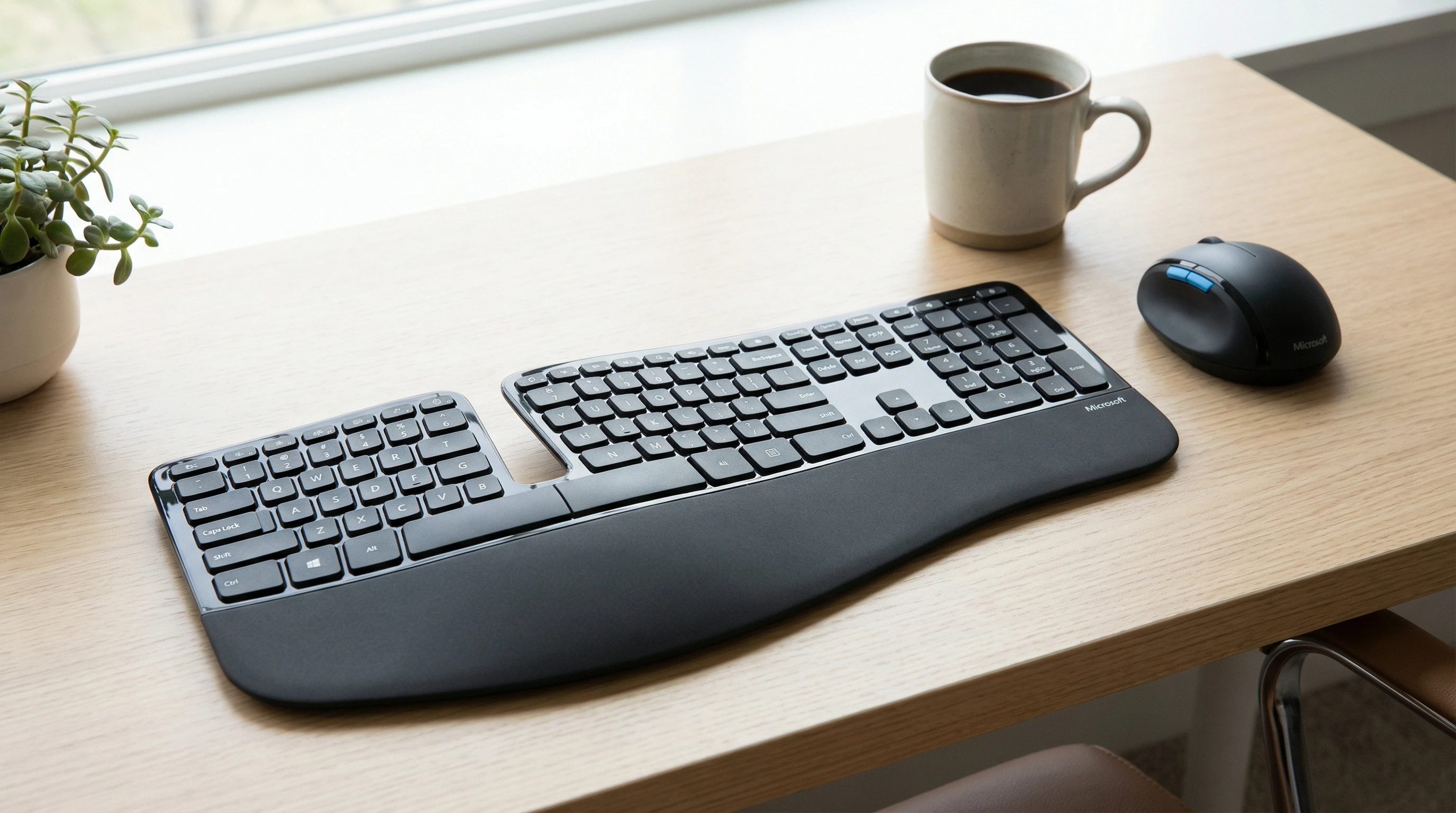
 If you spend hours at a keyboard every day like I do, you know that comfort isn’t just a luxury. It’s really important for keeping your wrists and hands feeling good long-term. I remember the wrist soreness I used to get with regular keyboards. That’s what pushed me to try out and create the Microsoft Sculpt Ergonomic Keyboard review, and I’ve been using it for over a year now.
Here’s my honest review and what you need to know before you pick one up yourself.
The Sculpt Ergonomic Keyboard has become a go to for office workers, writers, programmers, and anyone who wants to improve their typing experience. Let me walk you through what makes this keyboard different, how it can help your posture, and the things you’ll want to consider before making the switch.
Why Good Typing Posture Matters
Bad typing posture can sneak up on you. I used to hunch over, wrists bent at weird angles, and fingers awkwardly stretched. It only took a few months of full-time work before my wrists started to complain. Repetitive strain injuries (like carpal tunnel syndrome) often come from exactly this type of poor setup.
Here’s what I learned works best for improving typing posture:
- Keep your wrists straight and your hands floating comfortably above the keyboard.
- Place your elbows at about a 90-degree angle, shoulders relaxed, not hunched up.
- Use a chair that lets your feet rest flat on the floor.
- Take breaks every 30 to 60 minutes to move around and stretch your hands and shoulders.
- Raise or lower your screen so your neck stays straight without craning.
I found that regular keyboards kind of force my wrists to twist inward (called pronation), which made that soreness worse.
Ergonomic keyboards, such as the Sculpt, can really make a difference with that issue. You won’t have to struggle with the keyboard because they are made to fit your natural hand and arm position.
Key Features of the Microsoft Sculpt Ergonomic Keyboard
The Sculpt Ergonomic Keyboard takes a different approach from standard rectangular boards. Here’s what stood out to me right away:
- Split, Domed Design: The main part of the keyboard is split in two and curves upward in the middle. This setup encourages your hands, wrists, and forearms to rest more naturally.
- Cushioned Palm Rest: There’s a builtin, soft palm rest at the front. I found this really reduces pressure on the wrists and gives you a comfy place to pause between bursts of typing.
- Detached Numeric Keypad: The number pad is separate from the main board. This gives you more freedom over where to put it, for example closer if you enter data, or out of the way if not.
- Reverse Tilt Angle: The keyboard comes with a magnetic riser so you can pop up just the front. This helps your wrists stay in a more neutral and relaxed angle. It’s a small touch that made a big difference for me.
- Wireless Connection: It runs off a USB dongle, so your desk stays tidy with fewer cords running everywhere.
- Large, Wellspaced Keys: The keys have good travel and spacing. If you’re used to laptopstyle keyboards, this feels more substantial, with a gentle, springy response.
It didn’t take me long to get used to the new layout. I was up to my normal speed within a week, which is saying something since I type for work every day.
I also noticed that the keys are quite responsive, and the separation lets my hands fall naturally into place, making typing less of a strain over time.
Personal Experience: Real-World Use
I started using the Microsoft Sculpt Ergonomic Keyboard after a bout of wrist pain left me searching for anything that could help.
At first, the split layout looked intimidating, but within a few days, I realized I was typing with less tension in my arms and shoulders.
- Comfort: The domed shape and soft palm rest felt supportive and almost pillowlike compared to hard edged keyboards I’d used before. Long typing sessions were way more comfortable. When spending hours on documents, my wrists no longer ached the way they once did.
- Layout: There was a bit of a learning curve, mostly figuring out the split between left and right hands. I ended up enjoying the clear separation, which helped me avoid reaching too far with one hand. The spacebar is nice and wide as well, so I never had trouble hitting it from either side.
- Wireless: Plug and play was easy. No lag or connection dropouts, even when I was across the room for a presentation.
- Battery Life: Still going strong after months. Microsoft says it should last a year or more with typical use, and that lines up with my experience. I haven’t had to swap out batteries yet.
I even found myself making fewer typos once I got the hang of things, because my hands didn’t need to stretch awkwardly to hit certain keys. This keyboard feels built with long term comfort in mind, and it honestly changed the way I think about desktop gear.
Pros and Cons
No keyboard is perfct, so here’s my straight take on what works and what’s less ideal with the Sculpt Ergonomic Keyboard.
- What I Like:
-
- Super comfortable for long typing sessions.
- Great for wrist and forearm relief.
- Wireless for a neat desk (no tangled cables).
- Separate numeric keypad gives more desk layout options.
- Keys feel satisfying. Quiet but with a nice tactile feel.
- What’s Not So Great:
-
- Takes some time to get used to, especially if you’ve never used a split keyboard.
- The separate number pad might be easy to misplace if your desk is cluttered.
- Not ideal for gaming. Arrow keys and function keys are a bit smaller than usual.
- Uses a USB dongle instead of Bluetooth, so you lose a USB port.
- Not the best choice if you want something ultracompact or travelfriendly.
Who Should Use the Sculpt Ergonomic Keyboard?
If you spend large chunks of your day typing and have noticed wrist or shoulder discomfort, this keyboard is definitely worth checking out.
The design focuses on support and comfort, which can be a game changer for people with repetitive strain issues or anyone looking to take better care of their hands.
It’s especially handy if you work from a fixed desk and want a keyboard that helps encourage better posture without needing a bunch of extra gear. Just remember, if you’ve never used a split keyboard before, expect a brief adjustment period while your fingers learn the new layout.
The Sculpt Ergonomic Keyboard is also good if you like keeping your desk organized or prefer flexible setups. The separate number pad and wireless connection mean you can move things around easily.
However, if you’re a hardcore gamer, travel a lot, or need every USB port free, you might want to think twice before picking this up as your main keyboard.
Tips for Making the Switch
Switching to an ergonomic keyboard is a bit like learning to ride a new kind of bike. Here’s what helped me get used to it quickly:
- Stick with it for at least a week to give your brain and fingers time to adjust.
- Set up the front riser to get that comfortable wrist angle. The right elevation can make a big difference.
- Adjust your monitor and chair so everything lines up nicely. A proper chair and monitor setup help you take full advantage of the ergonomic design.
- Consider pairing it with an ergonomic mouse for even better results.
If you have persistent pain, talk to your healthcare provider and see if adjusting your setup might help. Everyone’s needs are different, but small changes in gear and posture do add up over time.
Final Thoughts
The Microsoft Sculpt Ergonomic Keyboard isn’t just a piece of hardware. It’s a way to make your workday feel smoother and a lot more comfortable, in my experience. If you’re looking to take pressure off your wrists or simply want a keyboard designed around the way your hands naturally move, this one ticks a lot of boxes.
There’s a bit of a learning curve, but your hands and posture will thank you in the long run. Ultimately, for anyone serious about comfort or who wants to give their hands a boost during long days at the desk, this keyboard is a smart investment.
Thats it for now peeps, have a great day!