
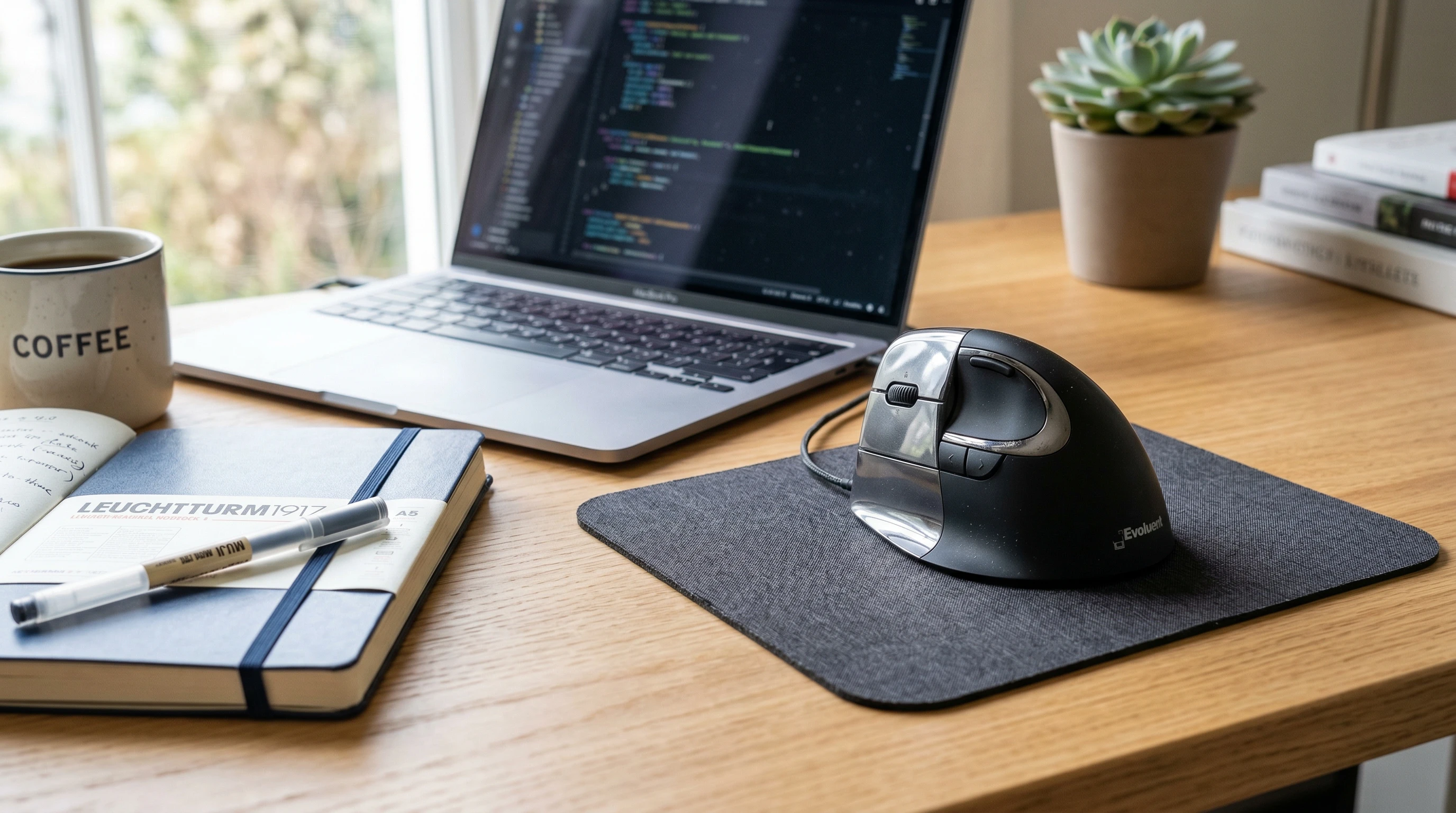
 If you find yourself dealing with wrist pain from long days at your desk, you’re definitely not alone. After years of working on computers, I know how tough it gets on your hands and arms. The Evoluent VerticalMouse 4 caught my eye as a possible fix, and after giving it a solid run, I’ve got a lot to say that might help if you’re wondering if it’s worth adding to your setup.
Ergonomics in the office have never been more important, and finding gear that gives your body a break is a game changer for productivity and comfort. With computer work being so central to daily life, options like the Evoluent VerticalMouse 4 are popping up everywhere.
But does this mouse just look next-level cool, or does it really step up your workflow and comfort? Let’s check out what it actually offers and if it’s a legit solution for professionals, creatives, or anyone who racks up serious hours on the computer.
Evoluent VerticalMouse 4 Overview
The Evoluent VerticalMouse 4 is a unique take on the classic computer mouse. Instead of forcing your hand into a flat, palm-down position, it gives you a handshake style angle, which is supposed to take pressure off your wrist and forearm.
It’s available in right and left handed versions, as well as wired and wireless options, so there’s a fit for just about everyone.
My personal experience lined up with a lot of what I’ve read online: the design feels pretty different at first, but after a few days, it becomes comfortable and pretty intuitive. The creators of this mouse really aimed at helping people who experience repetitive strain injuries and pain from old school mouse designs.
Key Features of the Evoluent VerticalMouse 4
This mouse is packed with some cool features that make it worth considering, especially if you’re putting in long hours on the computer:
- Handshake Design: The ergonomic vertical grip puts your hand in a natural position and helps reduce arm twisting and wrist strain.
- Adjustable Pointer Speed: There’s a simple switch to adjust cursor speed on the fly. Super useful for detailed work like photo editing or switching between monitors.
- Six Programmable Buttons: You can customize button functions using Evoluent’s software. I like setting some for copy, paste, or launching apps.
- Thumb Rest: A well shaped thumb rest helps reduce pressure and gives your grip an easy place to relax.
- High Quality Sensor: Smooth and accurate tracking works well on a variety of surfaces, so you won’t be stuck hunting for the perfect mousepad.
- LED Indicator: Shows you which pointer speed you’re on, which is actually pretty handy for quick checks.
Ergonomic Benefits
For anyone who suffers from discomfort, repetitive strain injuries, or even just stiff hands after work, this mouse can be really helpful.
The handshake grip keeps your wrist from twisting awkwardly, which is usually the problem with standard mice. Personally, I felt less tension in my wrist and arm after just a week of use.
The fact that the shape supports your hand (instead of forcing it flat) really adds up over long sessions. If you’ve ever had tingling fingers or achy wrists, switching to something like the Evoluent VerticalMouse 4 can be a game changer.
It also helps users who want to keep an eye out for early signs of injury, making this an ideal mouse for keeping your work setup supportive and efficient.
Setting Up the Evoluent VerticalMouse 4
Getting started with this mouse is as easy as it gets. Here’s what worked for me and most users:
- Plug It In: For the wired version, just connect it to your USB port and it’s ready. The wireless version comes with a USB dongle, so just plug that in and install batteries.
- Install Software (Optional): Download Evoluent Mouse Manager from their website if you want to customize buttons or set advanced features. It’s lightweight and straightforward.
- Adjust Pointer Speed: Use the physical buttons on the side to set your preferred pointer speed. The LED lets you check the setting instantly.
- Customize Buttons: I always recommend personalizing the side and thumb buttons to what you use most. It really gives your workflow a boost once you get used to it.
No drivers are needed for basic use, so you can skip the software if you just want to plug and play. For Mac users, the software offers limited features compared to Windows, but button remapping and pointer speed work on both platforms.
If you run into any issues during setup, there’s a pretty active online community where you can ask questions and troubleshoot—another plus if you’re not super tech savvy.
How to Use the Evoluent VerticalMouse 4 Effectively
Switching to a vertical mouse can feel a bit odd at first. Here’s what helped me make the transition smoother:
- Give It Time: Your hand and arm will need a few days to adjust. The handshake grip feels strange at first, but pretty soon it feels weird to go back.
- Use Arm Movements: Try to move the mouse from your arm and elbow instead of just your wrist. That’s where you’ll really notice less tension.
- Take Breaks: Even with ergonomic gear, breaks are still super important. Shake out your hand once in a while.
- Customize Shortcuts: Make use of the programmable buttons. This mouse shines when you use it for shortcuts that speed up repetitive tasks.
- Adjust Desk Ergonomics: Lower your desk or chair if you need to, so your arm rests comfortably as you use the mouse. Making sure your keyboard and monitor are at the right height can also make a big difference.
It also helps to check out Evoluent’s videos and guides if you need visual instructions—they give plenty of tips for getting the most out of the mouse and making the move to a vertical style smooth and comfortable.
Pros and Cons
I’ve put together the main upsides and a few downsides from my own use, plus what I’ve seen other users mention.
- Pros:
-
- Really reduces wrist and forearm tension
- Customizable buttons are super useful
- Great build quality, feels sturdy and premium
- Quick and easy setup on any system
- Solid sensor performance
- Cons:
-
- Takes a few days to get used to the grip
- Bulkier footprint, takes up more desk space than a regular mouse
- Software features on Mac are a bit limited
- Price is higher than basic ergonomic mice
For some, the bigger shape may not be ideal for small desks or travel, but it nails its main goal—support and comfort for long use. Considering its focus and build, the pros outweigh the cons for most users serious about reducing pain.
My Experience and Final Thoughts
After using the Evoluent VerticalMouse 4 daily for several weeks, I felt a real drop in wrist pain and had fewer hand cramps compared to my old mouse.
The shape does take some getting used to, especially if you’ve never tried an ergonomic vertical design, but the payoff is solid if you’re dealing with strain from long computer sessions.
I think it’s a practical upgrade for anyone who spends lots of time at their desk and wants something a bit kinder to their hands and arms.
Star rating: ★★★★☆ (4 out of 5)
Anyone considering a switch up to a vertical mouse for pain relief or just a more comfortable everyday setup should definitely put the Evoluent VerticalMouse 4 near the top of their list.
While it comes at a higher price and isn’t the smallest mouse out there, the ergonomics, smooth performance, and customization options make it worth looking into.
If you want to keep your hands happy and bring long-term comfort to your work routine, this mouse is a choice that stands out—and honestly, it might just become your go to desk upgrade.
Thats it for now peeps, have a great day!