
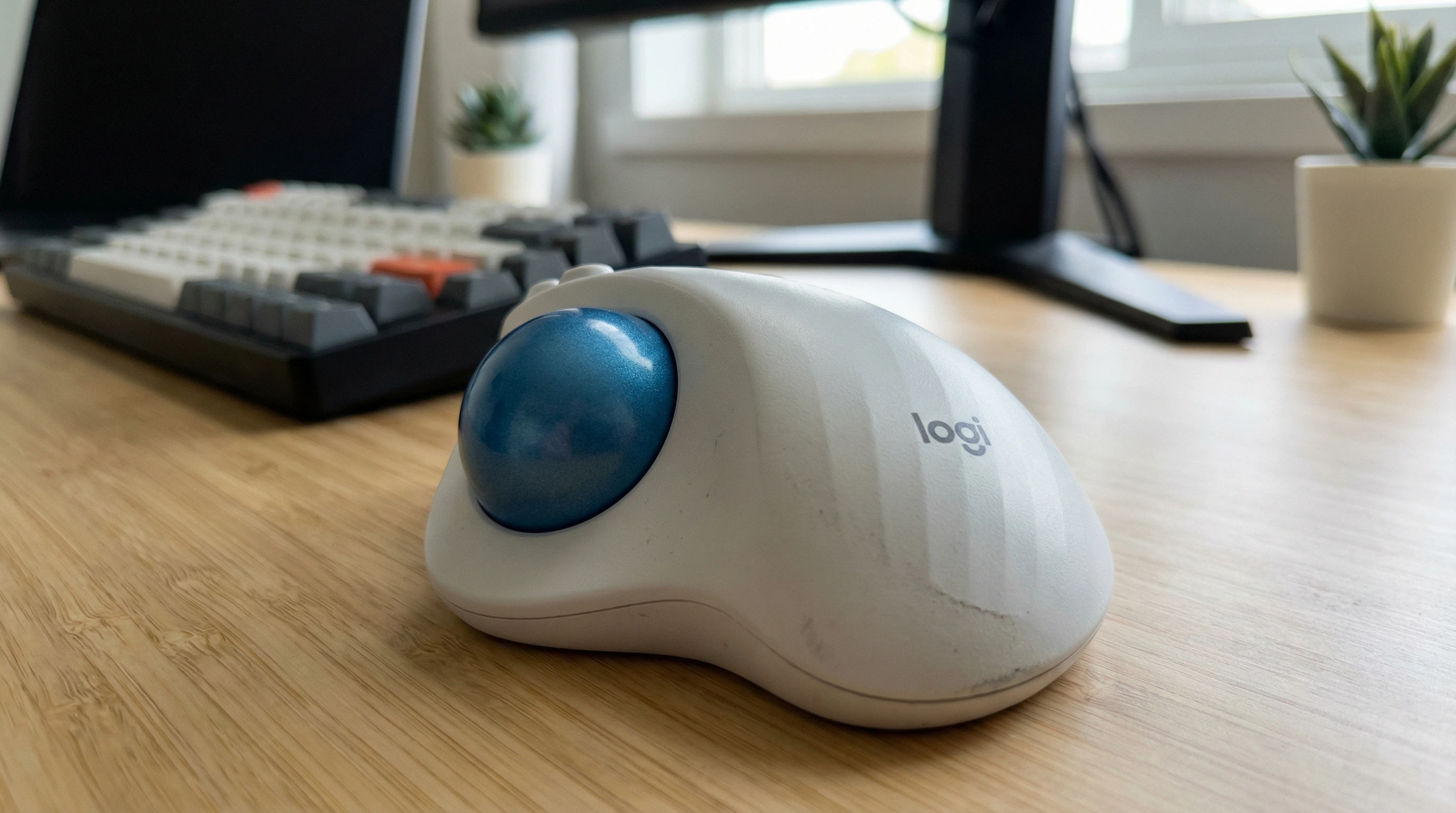
 If you’ve been struggling with wrist pain or just want a more comfortable way to work at your desk, the Logitech Ergo M575 wireless trackball is definitely worth checking out.
After spending a few weeks swapping between my usual mouse and this ergonomic trackball, I’ve picked up a ton of insights about what it gets right, and where it could use some tweaks. Here’s my full breakdown to help you figure out if the M575 deserves a spot on your desk.
Disclosure: This post may contain affiliate links which means that I may earn commission if click and make a purchase but no additional cost to you.
Logitech Ergo M575 Star Rating ⭐⭐⭐⭐☆ (4/5)
The Logitech Ergo M575 sits high on my list for ergonomics and ease of use, especially if you spend lots of hours at your computer. I’m giving it 4 out of 5 stars. It’s super comfortable, wireless, and easy to set up.
The only things holding it back are a few minor quirks and the fact that it’s not ideal for every user or task. Still, for most people dealing with repetitive mouse movements or a tight workspace, it’s a strong contender.
Why Use a Trackball Like the M575?
A traditional mouse needs you to move your whole arm and wrist, but with the M575 your hand stays put while your thumb handles all the action. On days when my wrist feels stiff, that change is a real game-changer.
Trackballs are great for cramped desks, and they’re much easier on the joints. They take a bit of getting used to, but the comfort boost is real, especially if you’re someone who clicks and drags all day long.
- Saves space by staying in one spot
- Reduces wrist and shoulder movement
- Perfect for folks with carpal tunnel or repetitive strain issues
Logitech Ergo M575 Standout Features
I’ve rounded up the key features that make the M575 so popular among folks looking for ergonomic solutions:
Thumb operated trackball: Lets you move the cursor with just a thumb flick, so your hand and arm can relax the whole time.
Wireless with dual connectivity: Hook it up either by Bluetooth or the included USB Unifying receiver. This is really handy for switching between a laptop and desktop.
Comfort focused design: The shape fits nicely into the palm. Even after a few hours, my hand didn’t get tired or sore.
Long battery life: Runs on a single AA battery that can last up to 24 months if using the USB receiver, or about 20 months using Bluetooth. I haven’t had to change my battery yet.
Customizable buttons: Two main buttons and a scroll wheel, just like you’re used to, plus extra buttons you can program for shortcuts with Logitech’s Options software.
Smooth tracking: The optical sensor is adjustable between 400 and 2000 DPI, making it responsive on almost any surface (though it won’t work on glass or mirrored desktops).
Easy to clean: The trackball is removable for quick cleanups whenever things get a little gunky inside.
How to Set Up Your Logitech Ergo M575
Getting started with the M575 doesn’t take long. Here’s how I did it:
- Pop in the AA battery that comes with the device.
- Decide how to connect, either Bluetooth (faster setup) or the included USB receiver (possibly more stable).
- For Bluetooth: Press and hold the Bluetooth button on the bottom, then choose “Logitech Ergo M575” when it pops up in your device’s Bluetooth menu.
- For the USB receiver: Just plug the receiver into any USB port and switch the mouse on—it pairs automatically.
- Download Logitech Options software from the official site to customize buttons, adjust scroll speed, and tweak the pointer tracking. I found the default setup perfectly fine, but those extra tweaks come in handy.
Overall, it barely takes 5 minutes from box to workspace, and you’ll be up and running quickly.
My Experience Using the M575
- Within a few hours, I found myself reaching for it naturally, even though my thumb needed a little time to adjust to this new way of moving the cursor.
- Clicking, scrolling, and even using the customizable buttons felt responsive. In fact, scrolling long web pages with the wheel is smoother than my old mouse.
- If you do a lot of graphic design or intense gaming, the trackball doesn’t have the same precision or speed as some standard mice. For office work, web browsing, or general productivity, though, it’s a solid choice.
 Pros & Cons of the Logitech Ergo M575
- Pros:
-
- Super comfortable and ergonomic for long term use
- Reliable wireless connection (both Bluetooth and USB)
- Battery lasts longer than most mice I’ve owned
- Space saving, which is great for cramped desks
- Easy cleaning and maintenance
- Cons:
-
- Not very portable; bulkier than some travel mice
- May take a week or so to get used to thumb movement
- No left handed option
- Not ideal for detailed gaming or design tasks
Difference between the Ergo M575 and Ergo M575s
You might see both the Ergo M575 and M575s being sold online. There’s no difference in design, shape, or button setup. The only change is in regional model numbers and sometimes included packaging.
For example, the M575s is often just a rebranded M575 for certain markets. If you see either model, you’re getting the same trackball, so don’t stress about which version to buy. Logitech’s support page backs this up.
FAQ: Common Questions About the Logitech Ergo M575
Q: Does the M575 work on Mac and Windows?
Yes, it supports both out of the box. For Mac users, the Logitech Options software works just as well as on Windows.
Q: Can I use it for gaming?
It works for casual games but isn’t built for fast-paced or super precise games. For strategy and puzzle games, it’s fine, but FPS gamers might want something more specialized.
Q: Is it good for people with small or large hands?
The curved design works for most hand sizes, though those with very small hands might find it a bit wide. If you can, try it in store, but most users report it’s comfy to use all day.
Q: How do I clean it?
Just pop out the blue trackball by pressing from underneath, wipe it down, and clear out any debris inside the socket. I do this every couple weeks to keep things smooth.
Q: What kind of warranty does it come with?
You get a 1-year limited warranty through Logitech, and their customer support is pretty responsive if anything goes wrong.
If you’re looking for a simple way to cut down on wrist strain, work more comfortably, and tidy up your desk setup, the Logitech Ergo M575 delivers on those fronts.
It only takes a little time to get used to, and once you do, your hand and wrist will thank you. Picking the right ergonomic tool is a small step that can make your workday much better, especially if you spend a lot of time at your computer.
This all-in-one review should help you track down the right fit for your needs, so you can keep working with less pain and more comfort in the long run.
Thanks for stopping by and have a great day!