
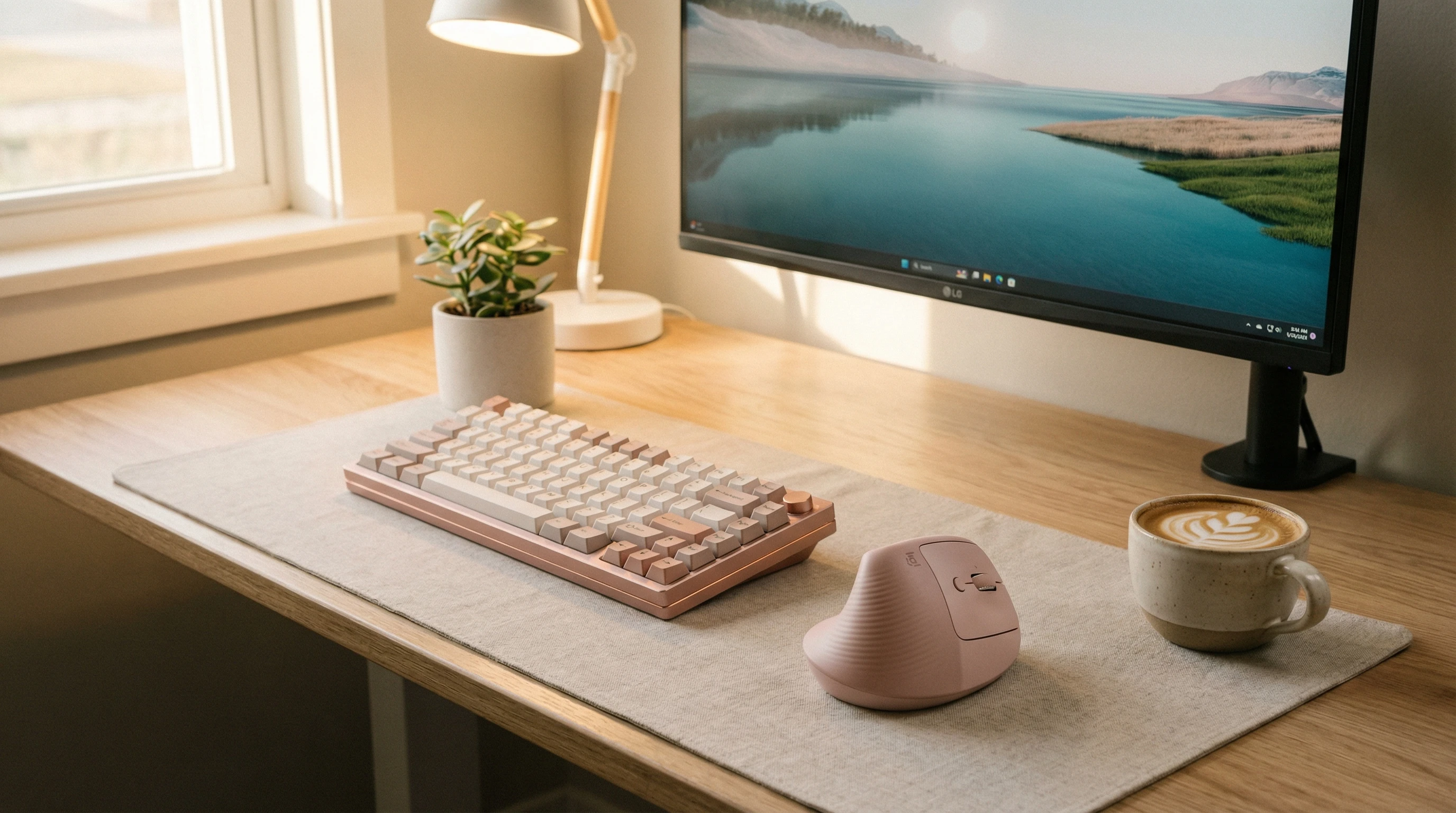
 If long hours at your computer mean a sore wrist, switching up your mouse can make a real difference. Switch to the Logitech Lift vertical ergonomic mouse and you won’t back. If you’re considering making your setup a little more comfortable, this logitech lift vertical ergonomic mouse review should help you decide if it’s right for you.
I’ve used plenty of standard mice before, but grabbing the Lift honestly felt like upgrading from cheap sneakers to memory foam slippers. Here’s my honest breakdown.
Logitech Lift Mouse Review: Quick Summary
Comfort is the main draw here. The design stands out from your usual flat mouse, since the Lift is a “vertical” mouse, which means the buttons and scroll wheel are set at an angle to give your hand a neutral, handshake-like position.
For me, this took a lot of strain off my wrist. I’ve mostly used the Lift for writing, web browsing, and a little bit of photo editing; it’s been pretty smooth overall.
Here’s my quick star rating:
⭐⭐⭐⭐☆ (4.5 out of 5)
Pros and Cons
- Pros:
-
- Very comfortable for small to medium hands
- Reduces wrist pain and fatigue
- Silent clicks and smooth scroll wheel
- Customizable buttons via Logi Options+ software
- Works with Windows, Mac, and Linux
- Easy Bluetooth or USB dongle connection
- Cons:
-
- Might feel awkward for folks with large hands
- Not the best pick for fast-paced gaming
- Battery is AAA, not rechargeable
- Takes a little getting used to if you’ve never tried a vertical mouse
Available Colours
The Lift isn’t just about ergonomics. Logitech actually gives you some color choices, which can help your setup look a little less boring. I love that they have decided to throw in a few colours! You can pick from:
- Rose (a subtle pink shade)
- Graphite (pretty much a classic black/grey look)
- Off White (looks clean and modern)
If you want your desk to feel a bit more personal, these options are nice to have. I went with Graphite, since I like a lowkey look, but Rose definitely stands out on a desk.
Who the Logitech Lift is For
In my experience, and after hearing from others who’ve tried it, the Logitech Lift is best for:
- Anyone with smaller or medium sized hands (big hands might prefer the Logitech MX Vertical)
- People prone to wrist, arm, or shoulder discomfort
- Office workers, writers, students, and anyone who uses their mouse a lot during the day
- Folks who care about wireless convenience and a tidy workspace
If your job involves tons of precision tasks, like design or 3D modeling, you might still prefer your old mouse. But for browsing, emails, writing, and most regular computer work, the Lift is great.
Even if you just want to mix things up or treat your wrist a little better, it’s worth checking out. Many users have noticed real improvements after making the switch, especially during extended work sessions.
Main Features of the Logitech Lift Ergonomic Mouse
So, let’s now have a look at the features I think you’ll really like:
57° Vertical Angle. This angle puts your hand in a more natural position. I noticed my pinkie and wrist stayed relaxed instead of cramped after a few days.
Textured Grip. The rubberized texture feels soft but doesn’t get slippery, even when I use it all day. My hand doesn’t feel tired, even after hours of use.
Silent Clicks. If you’re in shared workspaces or Zoom calls all day, you’ll love this. The buttons are almost silent, so no annoying clicks for your coworkers.
Smart Wheel. The scroll wheel is pretty smooth, and if you want, you can switch to a faster scroll for getting through long docs or web pages more quickly.
Customizable Buttons. Two thumb buttons let you set shortcuts for copy/paste, browser forward/back, or whatever works best for your workflow using the Logi Options+ app.
Easy Switch Technology. Pair the Lift with up to three devices at once (like your laptop, desktop, and tablet) and swap with a single click underneath. Super useful if you multitask across devices daily.
Bluetooth or USB Dongle. No need to deal with cables. Connect by Bluetooth, or pop in the included Logi Bolt dongle for a strong wireless connection.
Long Battery Life. One AAA battery runs it for months. No cable clutter, so your workspace stays neat. I appreciate not worrying about frequent charging.
How to Use the Logitech Lift Mouse
Getting started with the Lift is easy, even if you’ve never tried a vertical mouse before. Here’s what worked for me:
- Unbox the mouse and pop in the AAA battery (included in the box).
- Slide the power switch to turn it on.
- Connect to your computer via Bluetooth or use the Logi Bolt receiver.
- Download Logi Options+ if you want to tweak button functions or sensitivity (worth it).
- Rest your hand so your thumb sits comfortably in the thumb area, letting your fingers fall naturally on the left/right buttons and scroll wheel. No need to grip tightly.
It felt different for the first day or two. It was almost like learning a new handshake. My wrist got comfortable pretty fast. For shortcuts and customizations, I made the side button “back” and the top button “copy.”
If you’re big on shortcuts, spending a few minutes in the Logi Options+ software is definitely worth it. Over time, this setup speeds up your workflow, especially for repetitive tasks.
Everyday Use and RealWorld Experience
I put the Lift through standard workdays, switching back and forth between my old mouse and this one. My wrist started to feel better by week two.
I like how quiet and non fussy it is. The battery is still going strong, and being able to switch from my laptop to my desktop is pretty handy.
The only thing that didn’t work for me is gaming. The shape just isn’t designed for fast FPS play, but it still handles general multimedia and browsing with zero issues. Overall, deskwork, spreadsheets, or long reading sessions are less tiring because of the ergonomic shape.
Compared to Other Ergonomic Mice
The Logitech Lift isn’t the only vertical mouse out there, but it balances comfort, size, and features in a way that feels practical, not too flashy, not too basic.
If you’ve got bigger hands, the MX Vertical might feel better. For smaller desks or more colorful setups, the Lift is a better pick. Some alternatives offer rechargeable batteries or more programmable buttons, but the Lift’s design makes it a standout for everyday office use.
The Bottom Line
If you’re after a comfy, wireless upgrade for your desk that looks good and feels even better, the Logitech Lift does a great job. My wrist thanks me daily.
For those looking for a full featured vertical ergonomic mouse, the Lift stands out. If you want more info, check out reviews on the official Logitech site or tech sites like RTINGS.com. Careful research helps buyers make informed decisions.
So if your hand, wrist, and shoulder need a break or you’re working long hours on the computer, the Logitech Lift is worth a try.
Just give yourself a few days to get used to it. The difference is real, and your comfort is worth investing in, especially for everyday productivity.
You can check the logitech lift vertical ergonomic mouse here!
Thanks for stopping by and have a great day!