
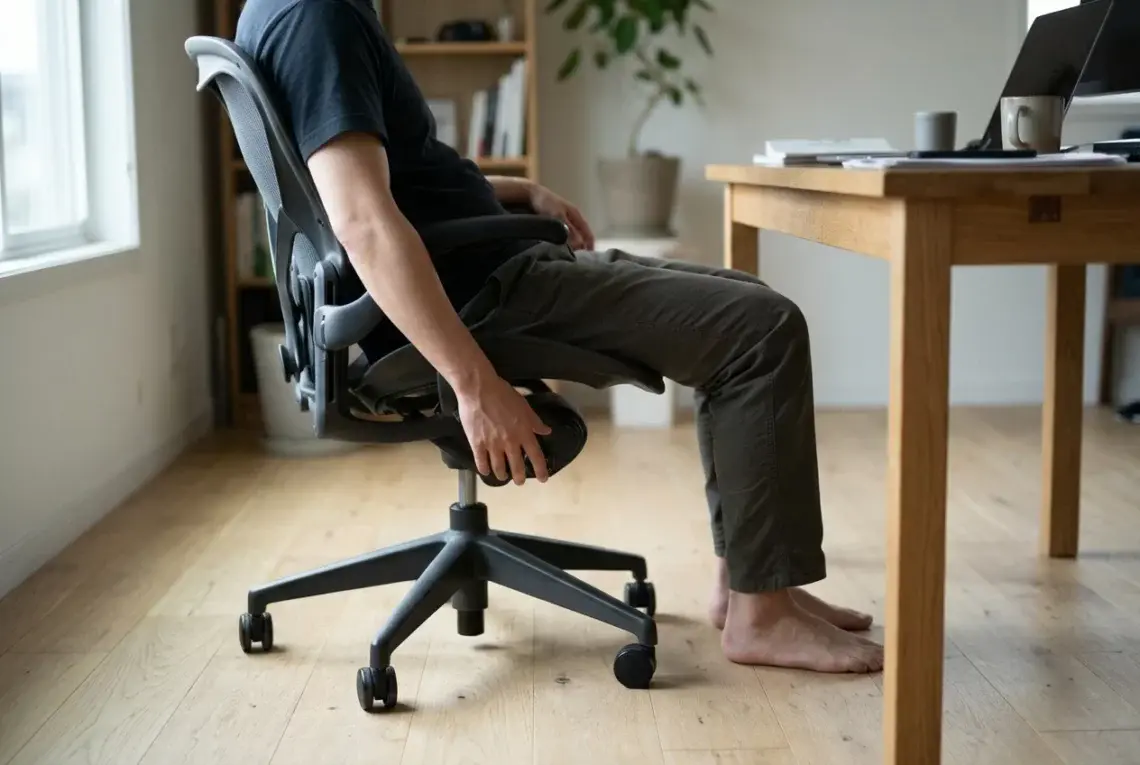
Most ergonomic chairs ship with a dozen levers, knobs and sliders, and most people touch only the height lever. The chair then sits in a default position built for nobody in particular. A chair with good lumbar support does very little if it hits your back in the wrong place, and armrests that are too high will pull your shoulders up all day however well the seat is padded.
This guide covers how to adjust an ergonomic office chair in the order the settings depend on each other. Seat height comes first because every other setting is measured from where your body ends up after that. Work through the steps in sequence and expect to revisit them once, because a change late in the process can shift something you set earlier. Set aside about fifteen minutes with the chair at your actual desk.
Before you start, sit in the chair wearing the shoes (or no shoes) you normally work in, and bring the things you use daily: your keyboard in its usual position and a phone or notebook if you handle them often. Adjusting with a bare desk and different footwear gives you a setup that changes the moment you start working.
Why a good chair still hurts when it is set up wrong
An ergonomic chair offers support at several points, but each point only works if it lines up with the matching part of your body. Lumbar support too high presses on your mid-back. A seat that is too deep leaves you perched on the front edge with nothing behind you. Armrests set for someone taller keep your shoulders raised for hours without you noticing.
The tension and recline settings are often the least understood. If they are wrong, you either fight the backrest to stay upright or sink into it and slump. Both positions put load on your lower back and neck, even though the chair itself is well designed.
Because the settings interact, a random adjustment here and there rarely fixes anything. Following the order below gives you a baseline you can change one setting at a time if something still feels off.
Start with seat height: feet, knees and the desk
Sit all the way back in the seat and let your feet rest flat on the floor. Your thighs should be roughly level with the floor, or tilted very slightly downward, with your knees at about the same height as your hips or a touch lower. Your knees will be bent a little more than a right angle, which is the position most people find easiest to hold.
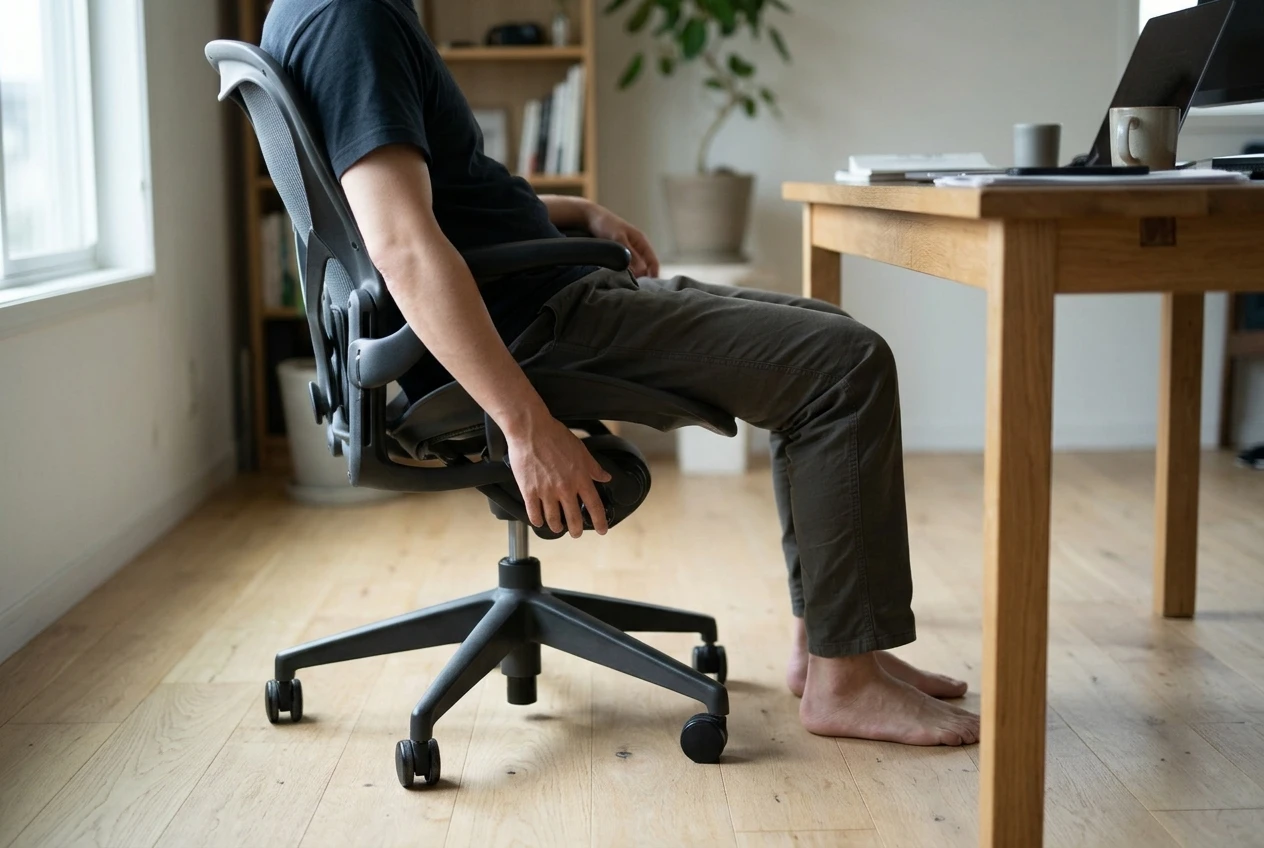
On most chairs the height lever sits under the seat, usually on the right side. To raise the seat, lift your weight off it and pull the lever up. To lower it, stay seated and pull. Make small changes and sit back down each time, because a couple of centimetres in either direction is easy to feel.
Two signs tell you the height is wrong:
- Too high: your feet dangle or you stretch your toes to reach the floor, and you feel pressure under your thighs.
- Too low: your knees rise above your hips, and your weight rolls backward onto your tailbone.
The desk affects this step. If your seat height is right for your legs but your elbows end up well below the desk surface, you have a desk that is too tall for the chair. Do not raise the chair to compensate and leave your feet hanging. Add a footrest, which comes up again in the section on the setup around the chair.
Seat depth and tilt: the gap behind your knees
Seat depth is the next adjustment, and many chairs have a slider that moves the seat pan forward and back, often a lever on the front left or right of the seat. Sit all the way back so your hips touch the backrest, then check the space between the front edge of the seat and the back of your knees. You want a gap of about two to three fingers’ width.
If the seat is too deep, the edge presses into the back of your knees and you will slide forward to relieve it, which takes your lower back off the backrest. If it is too shallow, your thighs lack support and your weight concentrates on a smaller area. Adjust the slider until the gap is right, then sit back and check again.
Some chairs also let you tilt the seat. Start with it level, or tilted very slightly down at the front, which keeps your hips open without letting you slide. A seat that tips back sends your weight toward the backrest, and that suits leaning back but works against you when you are typing upright.
Chairs without a seat depth slider fit a narrower range of leg lengths. If you cannot get the gap right on a fixed seat, note it for the final section of this guide.
Lumbar support: finding where your lower back actually sits
Your lower spine curves inward, and lumbar support is meant to fill that curve so your back does not flatten against the chair. The curve sits above your pelvis, roughly at belt level or a little higher. To find it, sit back in the chair and run your hand down your spine until you feel the hollow just above your hips.

Set the lumbar support so its firmest part meets that hollow. Many chairs have a height adjustment for this, either a sliding backrest or a pad on a track. If your chair has a depth adjustment too, start with the support set low and increase it until you feel contact without being pushed forward.
Check these points:
- The support should feel like gentle contact, not a ridge pressing into you.
- Your hips should stay at the back of the seat. If the lumbar pushes your pelvis forward, reduce the depth.
- Your shoulders should rest against the upper backrest or sit just in front of it, with your spine in a natural line.
If your chair has a fixed lumbar curve, you can only change where it falls by adjusting the backrest height (if it moves) or your seat depth. A fixed curve that lands too high or too low is a common reason a chair never feels right.
Recline and tension: leaning back without slumping
With seat height, depth and lumbar set, turn to the backrest angle and the tension control. On most chairs the tension knob sits under the seat, usually at the front, and turning it changes how much force it takes to lean back. A lever on the side typically locks the backrest at one or more angles.
Set the tension first. Sit with your back against the chair and lean back gently. You should be able to recline with light effort, and the backrest should support your weight without you feeling it will tip. If you have to push hard to recline, the tension is too high. If you drop backward as soon as you lean, it is too low. Heavier and lighter people need very different settings, so do not copy a setting from another person’s chair.
Then choose a working angle. For typing, an upright or slightly reclined position, a little past a right angle at the hip, keeps your head over your shoulders without strain. A more reclined position suits reading, thinking or taking a call. Many chairs let you lock the backrest at both angles or leave it free to move with you.
If your chair has a synchro tilt, the seat and back move together as you lean, which keeps your feet on the floor and your hips open. Some chairs also have a forward tilt setting that tips the seat down at the front. Try it only if you tend to lean toward the screen, since it suits focused, forward-leaning work but does little for relaxed sitting.
If there is a headrest, treat it as a support for reclining rather than for upright work. Set it so it meets the back of your head when you lean back, not so it pushes your head forward while you type.
Armrests: heights that take weight off your shoulders
Armrests come last among the chair settings because they depend on your seat height and your keyboard. Let your shoulders relax and bend your elbows to about a right angle. The armrests should rise to meet your forearms in that position, so the pad touches your arms without lifting them.
Look for these signs:
- Armrests too high: your shoulders rise toward your ears, and you feel tension at the base of your neck.
- Armrests too low: you lean to one side to find support, or your arms hang unsupported.
Beyond height, many chairs let you move the pads in and out, forward and back, or pivot them inward. Bring them in close enough that your arms stay near your body when you type, since reaching out to the sides puts load on the shoulders. If your armrests hit the desk edge and stop you from sitting close, lower them until they clear, or pivot them inward.
If the only position that fits your desk leaves your arms unsupported, that is useful information, and the next section shows how to change the desk side of the equation.
Adjusting around the chair: desk, monitor and footrest
A well-set chair still needs the desk to match. With your elbows at a right angle and your shoulders relaxed, the keyboard should sit at about elbow height so your wrists stay straight rather than bent up or down. If the desk is higher than that and you cannot lower it, raise your chair slightly and use a footrest so your feet are supported. An adjustable desk makes this easier, and our guide to the best standing desks for office use covers models that let you set the height exactly.
Place the monitor at roughly arm’s length, with the top of the screen at or just below eye level. This keeps your neck in a neutral position instead of tilting up or down. If you use a laptop, a separate keyboard and a stand to lift the screen help you meet both targets.
A footrest solves a specific problem. If your feet do not rest flat when your chair is at the right height for your desk, a footrest brings the floor up to you. Anything stable and sturdy works, and a box or a stack of books will do until you pick something better.
Small details around the desk also matter. Keep your mouse close to the keyboard so your arm does not reach, and if you rest your wrists while typing, read about the benefits of using a wrist rest to decide whether one suits you. For the wider room, including lighting and layout, see how to create a productive home office.
When no adjustment fixes it: signs you have the wrong chair
Once you have gone through every setting, give the new setup a week or two of normal use. It takes time to get used to a different posture, and mild awareness of a new position in the first few days is normal. Persistent discomfort after that suggests the chair itself may be the limit.
These are the common signs:
- The seat is too deep or too shallow and has no slider, so you cannot get the gap behind your knees right.
- The lumbar curve will not match your back. It sits too high or too low even at its extreme positions, or it presses uncomfortably however you set it.
- The armrests do not reach the right height or will not clear the desk.
- The backrest is too short or too tall for your torso, so your shoulders or neck go unsupported.
- The seat cushion has flattened. An older chair that has lost its padding stops supporting you whatever the settings say.
- The chair does not suit your size. Very tall, short, or heavy users often find standard chairs have too narrow a range.
Pain that spreads into your legs, numbness, or discomfort that continues away from the desk is worth discussing with a doctor rather than solving with furniture.
If you have set everything up and your back still complains, read our guide to choosing an ergonomic chair for back pain next.