If your wrist or forearm has started to ache by mid-afternoon, a new mouse is one of the cheapest changes you can make. The two designs most people try first are the vertical mouse and the trackball. They work in opposite ways, so the best ergonomic mouse for wrist pain depends on where your discomfort sits and how your desk is arranged.
This article compares the two by what each one changes about your wrist and forearm position, and by what each asks of your thumb and fingers. It then gives you a way to pick one to try first, a checklist for the first two weeks, and a plain account of what no mouse can fix.
What a standard mouse asks your wrist to do all day
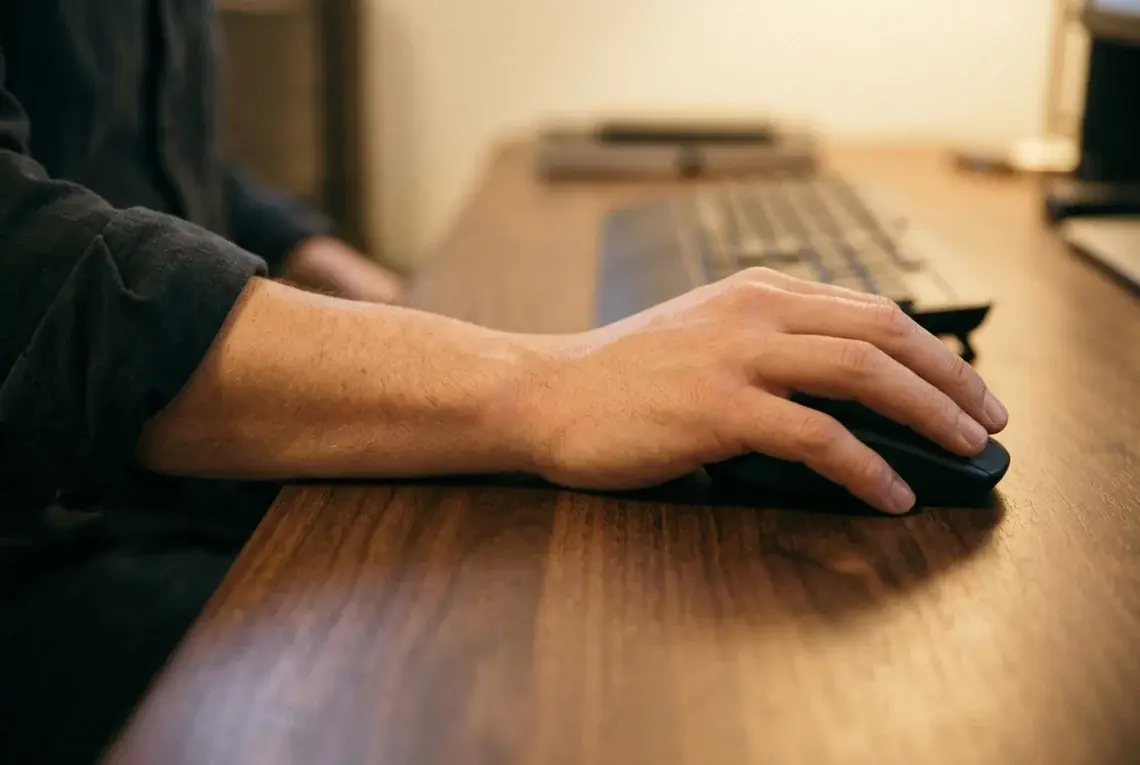
A standard mouse is flat, and it holds your hand palm down. To get your palm facing the desk, your forearm has to rotate, which twists the two forearm bones across each other. Most people hold that rotation for hours without noticing it.

Several other demands come with the flat shape:
- Wrist extension. If you rest the heel of your hand on the desk and lift your fingers to the buttons, the wrist bends slightly backward.
- Sideways pivoting. Many people steer the mouse by swinging the wrist left and right, rather than moving the whole forearm from the elbow.
- Constant light gripping. Your fingers stay curled over the buttons and the thumb pins one side, so the muscles in your forearm never fully relax.
- A long reach. If the mouse sits far from your body or past the edge of the keyboard, your shoulder and upper arm join in as well.
None of these is a problem for a few minutes. The trouble is the repetition: a small, static or repeated load held across a full workday, with no variation in position. Both designs below try to reduce that load, but they go at different parts of it.
How a vertical mouse changes your forearm and wrist position
A vertical mouse stands upright, with the buttons on the side that faces your thumb. You grip it much as you would shake someone’s hand. The main change is that your forearm rotates back toward a neutral position, so the palm faces inward rather than down. That removes much of the twist a flat mouse demands.
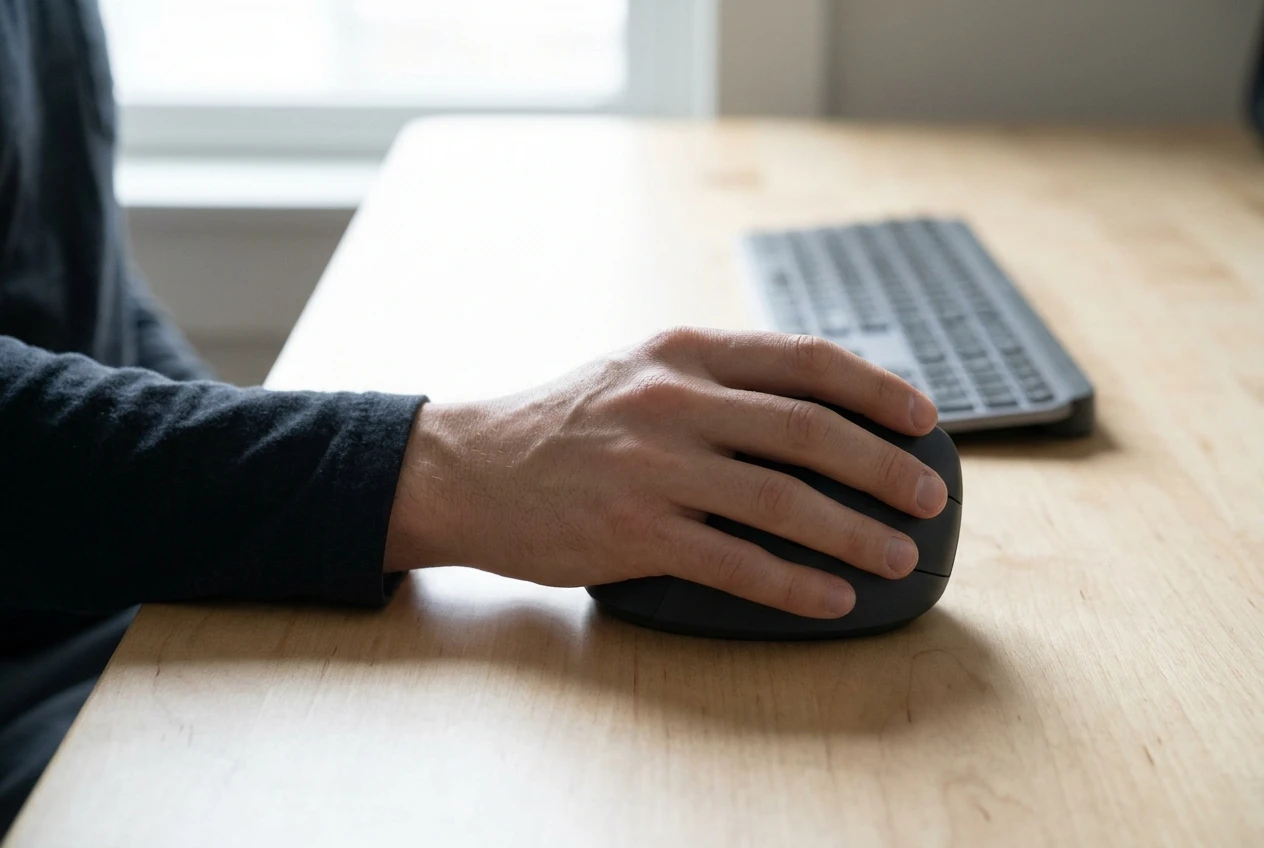
Many people also find the wrist sits straighter on a vertical mouse, because the hand is not draped over a flat shell. The mouse is tall enough that your hand does not need to bend backward to reach it.
What it asks of your hand
A vertical mouse does not change how you move it. You still slide it across the desk with your arm, so the movement of the wrist and forearm remains. What changes is the posture during that movement. If your discomfort comes from sustained twisting, this is a direct fix. If it comes from the sliding itself, it is a partial one.
Fit matters more with a vertical mouse than with a flat one. These mice come in different heights and angles, and a model that is too tall or too small makes your fingers stretch or curl. Check these points before you buy:
- Your thumb should rest on the side shelf without reaching downward or being pinched.
- Your fingers should reach the buttons without extending fully.
- The angle should feel comfortable, since some models are close to fully upright and others tilt noticeably.
- The size should suit your hand, and size ranges vary between brands.
Expect an adjustment period. Pointing feels less precise at first, because your hand is used to a different grip, and you may overshoot targets for a few days. That is normal, and it says little about whether the design suits you.
How a trackball takes the wrist out of the movement, and where the thumb takes over
A trackball stays in one place on the desk. You move the pointer by rolling a ball with your thumb or fingers, so your wrist and forearm have almost no sliding to do. This is the biggest difference between the two designs: a vertical mouse changes your posture, while a trackball removes most of the arm movement.
There are two common layouts:

- Thumb-operated. The ball sits at the side and your thumb rolls it. Your fingers rest on the buttons.
- Finger-operated. The ball sits in the center or top of the device, and your index and middle fingers roll it, often with the thumb doing the clicking.
What shifts to your thumb and fingers
The work does not disappear. It moves from the wrist and arm to the small muscles of the thumb or fingers, which now make every fine adjustment of the pointer. People who already have pain at the base of the thumb may find a thumb-operated trackball makes it worse. A finger-operated model spreads the work differently, though it asks your fingers to stay extended and active.
Two other limits are worth knowing. Many trackballs still hold your hand palm down, so they do not reduce forearm rotation unless the model tilts or angles the hand. And precision tasks that need you to hold a button while moving the pointer, such as dragging objects or detailed editing, feel awkward on some designs until you get used to them.
On the plus side, a trackball needs very little desk space and no mousing area. That helps if your desk is small, if you work from a lap-sized surface, or if reaching out to a mouse strains your shoulder. The ball also collects dust and skin oil, so plan to wipe it down from time to time.
Which one to try first, based on where it hurts
Neither design is proven to suit everybody, and comfort varies from person to person. Use the points below as a starting guess, then confirm it by testing.
Try a vertical mouse first if:
- your forearm aches or feels tight when it is held palm down
- the discomfort sits along the thumb side of the wrist or forearm
- you do a lot of precise pointing and want to keep the familiar sliding movement
- you have room on the desk for a mouse
Try a trackball first if:
- the pain starts when you slide the mouse or pivot the wrist side to side
- your shoulder or upper arm tightens from reaching for the mouse
- your desk is small or cluttered
- you spend long stretches with the pointer moving only short distances
Be careful with a thumb-operated trackball if your thumb or the base of it already hurts. A vertical mouse or a finger-operated trackball is the safer first test in that case.
If your pain is in the index finger from clicking, button layout matters more than the design. Look at where the buttons sit, how much force each click needs, and whether you can assign a different finger to the main click.
If you cannot tell where the strain starts, choose the vertical mouse. It is the smaller change from what you do now, so the learning period is shorter.
What to check when you test a new mouse in the first two weeks
Give a new mouse about two weeks before you decide, and treat the first few days as practice rather than a verdict. Expect some clumsiness. Do not expect sharp pain. Use this list as you go:
- Keep the old mouse nearby. Switching fully on day one makes a frustrating start. Use the new one for part of the day and extend it as it feels natural.
- Look at your wrist. It should stay roughly in line with your forearm, not bent up, down or sideways.
- Notice your grip. If you are squeezing the mouse, loosen your hand. A tight grip adds the strain you are trying to remove.
- Adjust the pointer speed. A higher speed means smaller movements for the same distance on screen, which cuts the work your hand does. Raise it in small steps until you can reach the screen edges without overshooting.
- Watch for pain in a new place. Soreness in the thumb, a finger or the forearm after switching tells you the load has moved. A little muscle tiredness is expected. Sharp, burning or worsening pain is a reason to stop.
- Note when it hurts. Write down the time of day and the task. A pattern, such as pain after long spreadsheet sessions, shows you where to adjust next.
- Take short breaks. Let your hand rest off the mouse at least briefly every so often, whatever the design.
At the end of two weeks, compare how your arm feels at the end of a workday with how it felt before. If it is clearly better, keep going. If it is the same or worse, try the other design rather than giving up on changing your mouse.
Mouse position, desk height and wrist support: the fixes a new mouse can’t make for you
A well-shaped mouse in a poor position still strains your arm. Several things around the mouse matter as much as the mouse.
Mouse position. Keep the mouse close to the keyboard and at the same height, so your upper arm hangs near your body and your elbow stays bent at a comfortable angle. If you have to reach forward or out to the side, your shoulder and forearm take the load. A trackball can sit right beside the keyboard, which helps.

Desk and chair height. Your forearm should run roughly level, with your elbow around a right angle and your shoulders relaxed. If the desk is too high, you lift your shoulders and bend your wrist upward. If your chair is too low, the same thing happens. Adjustable armrests that support the forearm can take weight off the wrist, and our guide on adjusting an ergonomic office chair setting by setting covers armrest height and seat height in order.
Wrist support. A wrist rest can help during pauses by keeping the wrist from hanging in the air or pressing on a hard edge. It is not meant to be planted in place while you move the mouse, since anchoring your wrist forces the movement into the fingers or forces the wrist to bend. Use it as a place to rest between actions.
The rest of the workstation. The keyboard, monitor height and sitting posture all affect how your arms hang. If you want to check all of them in one pass, work through a head-to-toe ergonomic checklist and fix whatever it flags before you decide a mouse has failed.
Your work habits. Keyboard shortcuts replace many mouse movements. Voice dictation, where your work allows it, replaces some typing as well. Reducing the number of clicks and drags per hour lowers the load more than any change of shape.
When the strain needs more than a new mouse
A new mouse and a better setup suit ordinary workday strain: aching, tiredness and tightness that ease with rest. Some symptoms point to something a desk adjustment will not solve, and they are worth taking to a doctor or physiotherapist rather than waiting out.
See a health professional if you notice:
- numbness or tingling in your fingers, especially if it wakes you at night
- weakness in your grip, or dropping things
- pain that continues when you are not using the mouse
- swelling, or pain that keeps getting worse over several weeks
- no improvement after you have corrected your setup and tried a different mouse
Early attention usually gives you more options than late attention, so do not wait for the symptoms to become severe. A professional can look at how you actually use your hands and tell you whether the cause is your equipment, your technique or something else.
Pair your mouse with the right desk setup
Your new mouse will work best when the desk around it supports your arm. Pair your new mouse with a proper desk setup: read our guide on how to arrange your desk ergonomically and our piece on the benefits of using a wrist rest.
That’s it for now peeps, have a great day!